 gmCharts
Advanced Bar
About game
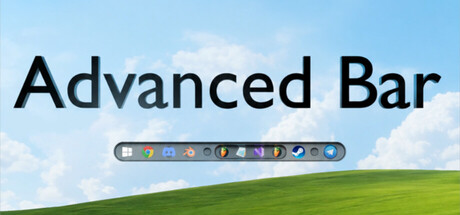
Advanced Bar lets you change the appearance of your taskbar using a three-tier system:
Light Mode:
Fine-tunes the transparency of your taskbar, but also allows you to add a custom static/animated background to the bar. This mode is designed for users who don't need to completely replace their taskbar, but want to change its most obvious parts.
Advanced Mode:
This is the basic mode, in which the taskbar is completely replaced with a custom one. This mode allows you to:
- New window switching system:
Windows displays as many thumbnails as you have open application windows—that is, if you have four open windows, you'll see four thumbnails. My program offers a different option:
1. The position of the cursor on a single thumbnail determines which window (preview) is shown to the user: if you have four open windows, the thumbnail is divided into four equal parts.
2. Completely close an application process without clicks: You can hover over the name of the displayed preview – this starts the process closing process (lasts 4 seconds). This action doesn't require any clicks.
- Change the Start button:
1. Replace the Windows Start button with any image (GIF, PNG, JPG).
2. When you hover over the Start button and wait a few seconds, a separate hidden window appears where you can write a hidden note that will be stored until the end of the workday.
3. Separate context menu for Start: Right-clicking on it will unlock even more features – one of them is: Gradient Layer: Adds a gradient to the panel, making icons more legible if your wallpaper is bright and detailed.
- App Groups:
1. Now, an app you need but that visually clutters your taskbar can be hidden within a group. This allows you to keep the app from being removed from the taskbar while still having quick access to it—handy if you have several identical apps in different versions.
2. A group can hide all apps at once, leaving only the Start button. In reality, you can have up to 100 apps in the taskbar, but they are only visible when open.
- Music Player:
1. Previously, to listen to downloaded music, users had to keep two windows open in the taskbar: the music folder and the player itself. Now you have a separate button in the right area that opens the player with more functionality:
2. Music Equalizer: Boost the bass or other frequencies in a track if the original isn't as dynamic.
3. Playlists: Now you can sort your music into playlists, separating music for games or work.
4. Track Cover: Add any image (jpg, png) to a track that particularly resonates with you.
5. Notes for each individual track: You can leave a comment or lyrics here.
6. Track Playback Modes: Loop and Shuffle.
- Control Panel:
1. Desktop users can now change brightness programmatically: a quick access slider will appear that changes the monitor's brightness.
2. Quick access bindings for programs (2): If you definitely don't need groups and an application in the taskbar is distracting, you can add a binding in a separate window.
3. Exit Advanced Bar: This simply exits the program.
- Application icon color in the taskbar: You can now customize the color for all applications, calibrating the application color to match your desktop wallpaper. The program calculates the brightness of each icon, so all applications will be approximately the same brightness.
- Show application location without clicking: You can find out the exact location of an application by hovering over the icon and waiting 2 seconds. This feature can be disabled in a separate context menu.
- Caps Lock indicator: There's now a small arrow next to the language button that displays the caps lock status.
- Initial sync with the real taskbar:
The first launch will sync your original taskbar with the Advanced Bar, and all other changes will be local.
Air Mode:
Offers all the features of Advanced Mode, but now both the taskbar and the right control area are in capsules, allowing you to:
1. Hide the taskbar.
2. Move the right control area.
3. Increase the work area.
Player Activity
Monthly stats
| Month | Avg players | Growth | Growth % | Peak |
|---|---|---|---|---|
About Advanced Bar stats
gmCharts tracks Advanced Bar Steam player activity, including current players, 24-hour peak, 30-day peak, and recent player trends.